Understanding Assignment Statuses
A guide for assignors on how assignments move through the system.
1. The Assignment Lifecycle
Every assignment in Ref Insight follows a predictable path from creation to completion. Understanding this flow helps you manage your assignments efficiently and troubleshoot if things don't look quite right.
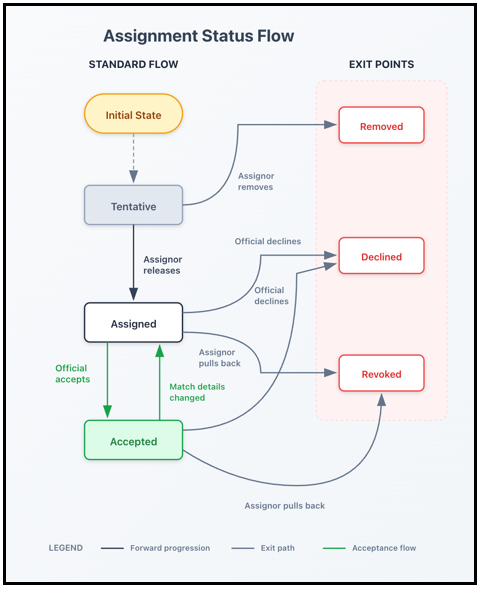
Assignments exist in one of six statuses, which fall into two categories:
- Standard flow — The normal path an assignment takes from creation to game day
- Exit points — Ways an assignment can end before the official works the match
2. The Six Statuses
Standard Flow
Status | What It Means |
Tentative | You've created the assignment but haven't released it yet. Only you can see it. |
Assigned | You've released the assignment and it's waiting for the official to respond. |
Accepted | The official (or you on their behalf) has accepted the assignment. |
Exit Points
Status | What It Means |
Removed | You deleted the assignment before releasing it. It was never sent to an official. |
Declined | The official (or you on their behalf) turned down the assignment. |
Revoked | You pulled back the assignment after releasing it. Only assignors can revoke. |
3. How Assignments Move Between Statuses
Starting Point: Tentative
When you first create an assignment, it begins as Tentative. From here, you have two options:
- Release it → Status becomes Assigned
- Remove it → Status becomes Removed
After Release: Assigned
Once released, the official can respond:
- Official accepts → Status becomes Accepted
- Official declines → Status becomes Declined
- You revoke it → Status becomes Revoked
You can also accept or decline on behalf of the official if needed.
After Acceptance
Once accepted, an assignment typically stays that way until game day. However, there are a few ways the status can change:
- You revoke it → Status becomes Revoked
- Match details change (date, time, or site) → If your schedule requires reacceptance for changes, the status returns to Assigned. The official can then accept or decline based on the new details.
- Turnback → If your schedule allows turnbacks, officials may decline within the configured timeframe after accepting. Status becomes Declined.
Coming Back from Declined
If your schedule settings include a grace period, officials can accept an assignment within the configured timeframe after declining it. The status returns to Accepted.
4. Who Can Do What
Action | Assignor | Official |
Create assignments | ✓ | |
Release assignments | ✓ | |
Remove (before release) | ✓ | |
Accept | ✓ (on behalf of official) | ✓ |
Decline | ✓ (on behalf of official) | ✓ |
Revoke | ✓ | |
Hide declined or revoked from workspace | ✓ |
Key point: Only assignors can revoke assignments. Officials cannot revoke.
5. Current vs. Non-Current Assignments
What does "current" mean?
When an official holds a position, their assignment is marked as current. Only one assignment can be current for a given position at a time.
When does this matter?
When you replace an official:
- The original official's assignment becomes non-current
- The new official's assignment becomes current
The system preserves all assignment history. Non-current assignments aren't deleted—they're just no longer the active assignment for that position.
Resurrecting assignments
If you need to bring back a previous official and there's no current assignment for the position, you can resurrect their non-current assignment by clicking the magnifying glass next to Assignment Focus and clicking the "Back to Assigned" button. It will become current again and follow the normal status flow.
6. Managing Your Workspace
What shows in the assigning workspace?
The workspace displays all current assignments, with two exceptions:
- Removed assignments (they were never released, so there's nothing to show)
- Hidden declined or revoked assignments (you've chosen to hide them)
Using the Hide button
To access the Hide button, click the magnifying glass next to Assignment Focus, then click "View Assignment." The Hide button is useful when you have a declined or revoked assignment cluttering your workspace and you want to see the position as open in your workspace instead.
When you hide an assignment:
- It becomes non-current
- The position appears as open in your workspace
- The assignment history is preserved (nothing is deleted)
When to use it: You have a declined or revoked assignment with no replacement official, and you want the position to show as open rather than showing the old assignment.
Quick Reference: Status Transitions
From | To | How It Happens |
Tentative | Assigned | Assignor releases |
Tentative | Removed | Assignor removes before release |
Assigned | Accepted | Official accepts (or assignor accepts on their behalf) |
Assigned | Declined | Official declines (or assignor declines on their behalf) |
Assigned | Revoked | Assignor revokes (takes the assignment away from the official) |
Accepted | Assigned | Match details change (if re-acceptance required) |
Accepted | Declined | Official uses turnback (if allowed) or assignor declines on their behalf |
Accepted | Revoked | Assignor revokes (takes the assignment away from the official) |
Declined | Accepted | Official accepts within grace period (if allowed) |
Questions?
Contact us at support@refinsight.com
Was this article helpful?
That’s Great!
Thank you for your feedback
Sorry! We couldn't be helpful
Thank you for your feedback
Feedback sent
We appreciate your effort and will try to fix the article